Parental controls internet safety starts with a few clear household rules, not an expensive pile of gadgets. Most families can make meaningful improvements with the router they already own, built-in phone settings, and a short conversation about why limits exist. The goal is not to monitor every tap or turn your home into a technology lab. It is to make devices easier to manage, reduce late-night arguments, and give children room to use the internet with growing independence.
Start with the simple settings first
Before buying a new mesh system or subscription service, make a list of the devices your family actually uses. Include phones, tablets, game consoles, smart televisions, laptops, and any streaming sticks. Write down who uses each device, whether it has its own account, and when it is normally active. This small inventory often reveals that one forgotten tablet or gaming console is bypassing the rules you thought were in place.
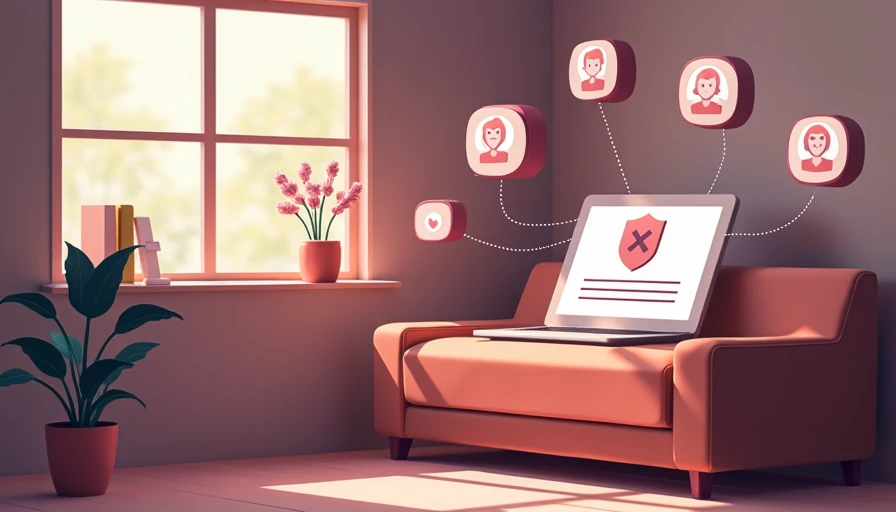
For parental controls internet safety, separate adult accounts from child accounts. Apple Screen Time, Google Family Link, Microsoft Family Safety, and console controls can limit app downloads, filter some content, set screen-time schedules, and require approval for purchases. These tools are usually free. Set them up with a parent email address that only adults can access, and protect that account with a strong, unique password and two-factor authentication.
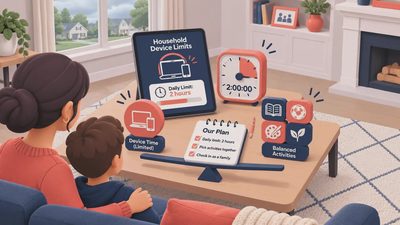
Choose limits that match your household rather than copying a dramatic rule from someone online. A school-night device cutoff at 8:30 p.m. might work for one family and be unreasonable for another. Start with bedtime, homework, and meal routines. You can adjust the schedule after a week when you know what is causing friction.
Use the router as a second layer
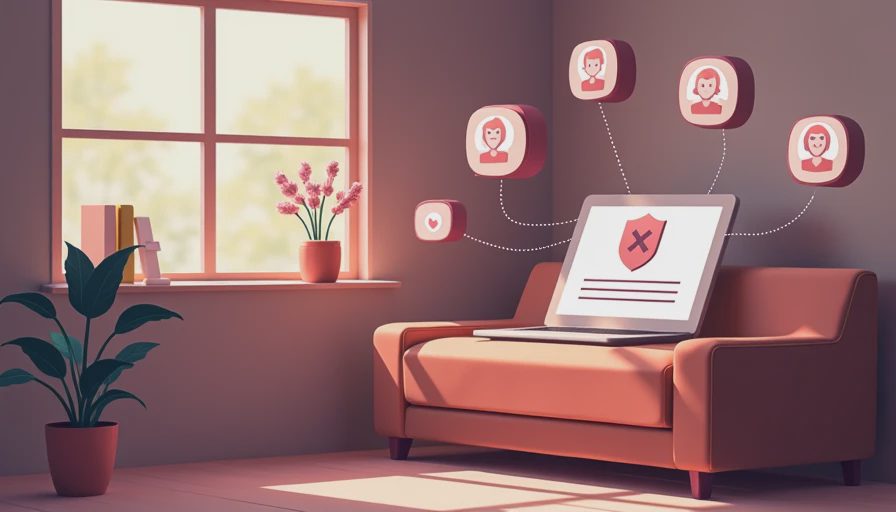
Your router can help with parental controls internet safety, but it should not be the only layer. Many current routers from Eero, Google Nest Wifi, TP-Link, ASUS, and Netgear let you create family profiles, pause internet access, schedule downtime, and apply basic content filters. The exact menus differ, so update the router firmware first and look for a family, profile, or access-control section in the manufacturer app.
A profile works best when every device is assigned correctly. Put a child's tablet and console in that child's profile, rather than placing all devices in a general “kids” group if different schedules apply. Test the pause button while the child is nearby. Some devices continue using downloaded videos or cached content, while others lose access immediately. Testing prevents a bedtime rule from becoming a midnight troubleshooting project.
Be careful with broad website blocking. Filters can accidentally block homework resources, medical information, or ordinary news. They also cannot reliably understand every page, image, message, or video. Use filtering to reduce accidental exposure, then rely on device settings and family expectations for the rest. A reputable router service might cost roughly $3 to $7 per month, but many homes can start without that recurring expense.
Protect privacy without overcomplicating the network
Parental controls internet safety also includes privacy. Review which apps can use a device's location, microphone, camera, contacts, and advertising identifier. A flashlight app does not need access to contacts, and a simple game usually does not need continuous location access. Turn off permissions that do not serve a clear purpose, and remove apps nobody uses.
Create separate logins where possible. A child should not use the same account as a parent for online shopping, email, cloud storage, or smart-home controls. Shared passwords create practical problems: a child can accidentally change a thermostat setting, buy a movie, or expose private photos. A password manager such as 1Password, Bitwarden, or Apple Passwords can keep adult credentials organized without making children responsible for secrets they do not need.
If your home has smart cameras, a doorbell, or voice assistants, explain what those devices collect and when they are active. Disable voice purchasing, review saved recordings, and avoid placing indoor cameras in private areas. Safety at home should not require treating every room like a surveillance zone.

Pair technology with a plain family agreement
Software cannot replace a useful conversation. A family agreement should cover what happens when a child sees something upsetting, receives a message from an unknown person, or makes an accidental purchase. The first response should be asking for help, not hiding the problem because a device will be confiscated immediately.
For parental controls internet safety, keep the rules short enough to remember. Devices stay out of bedrooms overnight, purchases require approval, real names and school details are not shared publicly, and private conversations with unknown adults should be reported. You can add rules for group chats, livestreaming, and online games as those situations arise.
Show children how to block and report accounts, leave a group chat, and take a screenshot of a concerning message. Walk through those steps on the actual apps they use. A ten-minute practice session is more useful than a long lecture filled with warnings. Revisit the agreement every few months because apps, school expectations, and maturity change quickly.
Maintain the setup like any other home system
Parental controls internet safety requires occasional maintenance. Once a month, check the list of connected devices in the router app and remove anything unfamiliar. Review installed apps, account recovery email addresses, purchase history, and screen-time reports. Screen-time reports are clues, not a complete record; an app may show activity without explaining whether it was homework, a call, or passive video playback.
Keep router firmware, phone operating systems, browsers, and game consoles updated. Updates often repair security problems and improve compatibility with filtering tools. Replace default router passwords, disable remote administration unless you genuinely need it, and write down the recovery process in your household notebook. Do not store the main Wi-Fi password in a child-facing note if that password also protects smart locks or cameras.
When a control fails, troubleshoot one layer at a time. Confirm the device is assigned to the correct profile, check its date and time, update the app, and restart the router only after recording current settings. If a child uses cellular data, home Wi-Fi rules cannot control that connection; use the phone's carrier or operating-system settings as well.
Know what these tools cannot do
No parental controls internet safety product can guarantee that a child will never encounter harmful content. Filters miss things, shared networks can behave unpredictably, and older children may have access to another connection at school or a friend's home. The practical target is reducing avoidable exposure while teaching judgment and giving children a trusted adult to contact.
Start with one improvement today: create separate accounts, schedule a reasonable downtime period, or review privacy permissions on the most-used device. Add the router layer after the basics work. Let’s make your home work for you, not the other way around.