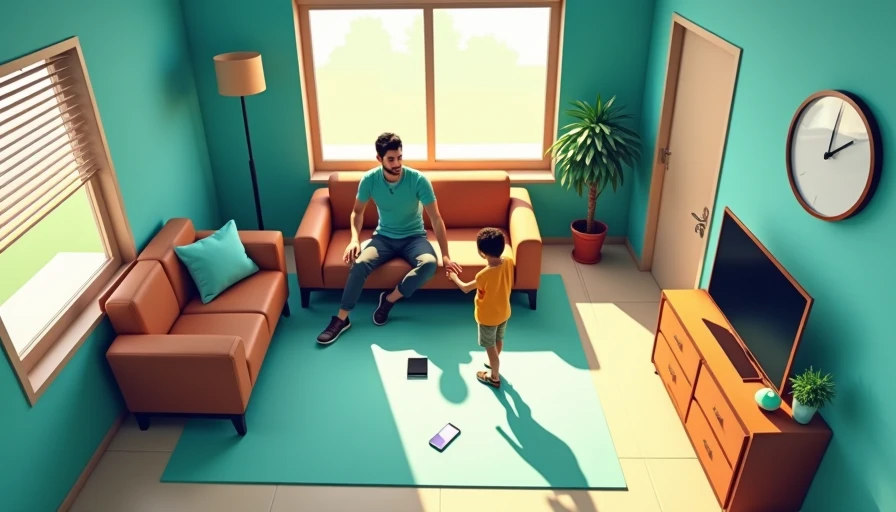
If you are asking how to turn off screen time for my child, start by identifying where the limit was created. An iPhone or iPad can use Apple Screen Time, while an Android device typically uses Google Family Link. A limit set inside an app, such as YouTube or Roblox, is a separate control. The quickest fix is to change the setting from the parent account, not from the child's device.
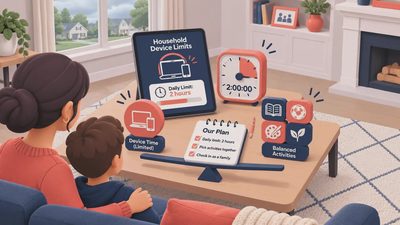
Before changing anything, decide whether you want to remove all limits or simply allow more time today. Turning off every restriction also removes useful controls such as downtime, app limits, and content filters. In many homes, increasing a limit or approving extra time is the better solution for a weekend, school project, or long road trip.
Turn off Screen Time on an iPhone or iPad
On your iPhone, open Settings and tap Screen Time. If your child is in your Apple Family Sharing group, tap the child's name under Family. Otherwise, open Screen Time directly on the device being managed. Look for the control that says App & Website Activity, or the option to turn off Screen Time, depending on your iOS version.
Tap Turn Off App & Website Activity and confirm the change. If Apple asks for a Screen Time passcode, enter the parent passcode rather than the device unlock code. The two codes are often different. If you cannot remember the passcode, tap the passcode recovery option and use the Apple Account connected to the family organizer or parent account.
To remove only a scheduled restriction, open Downtime and turn off Scheduled. To remove individual app limits, open App Limits, select the category or app, and delete the limit. This approach is useful when your child needs access to a calculator, reading app, or school website but should still have a bedtime schedule.
How to turn off screen time for my child through Family Sharing
Parents often make the change on their own phone, then wonder why the child's iPad still shows a limit. Open Settings, tap your name, select Family, and choose your child's profile. From there, open Screen Time and adjust the relevant setting. Keep both devices connected to the internet for a few minutes so the account change can synchronize.
If the setting does not update, restart both devices. Confirm that each device is signed in to the expected Apple Account and that Family Sharing has not been disabled. An old iPad may also be using a different account from the one listed in your family group. In that case, changing your current phone's settings will not affect it.
For a one-time exception, your child can request more time when the limit appears. You can approve an additional 15 minutes, an hour, or the rest of the day from your device. This keeps your normal routine intact and avoids rebuilding every limit later.
Turn off limits on an Android phone or tablet
On Android, open the Google Family Link app on the parent phone. Select your child's profile, tap Controls, and open App limits or Screen time. To remove a daily schedule, choose the daily limit and turn it off. To permit one app, open App limits, select the app, and choose Allow or No limit, depending on the version of Family Link you use.
You can also change the schedule for specific days. For example, a child might have two hours on school nights and four hours on Saturday. Family Link can apply bedtime settings separately, so removing the daily limit does not necessarily remove bedtime. Check both areas if the device still locks at night.
If you are trying to understand how to turn off screen time for my child on Android, remember that the parent app is the main control panel. Changing the clock, deleting the app, or switching profiles on the child's device usually will not remove a family-managed restriction.
Why the limit keeps coming back
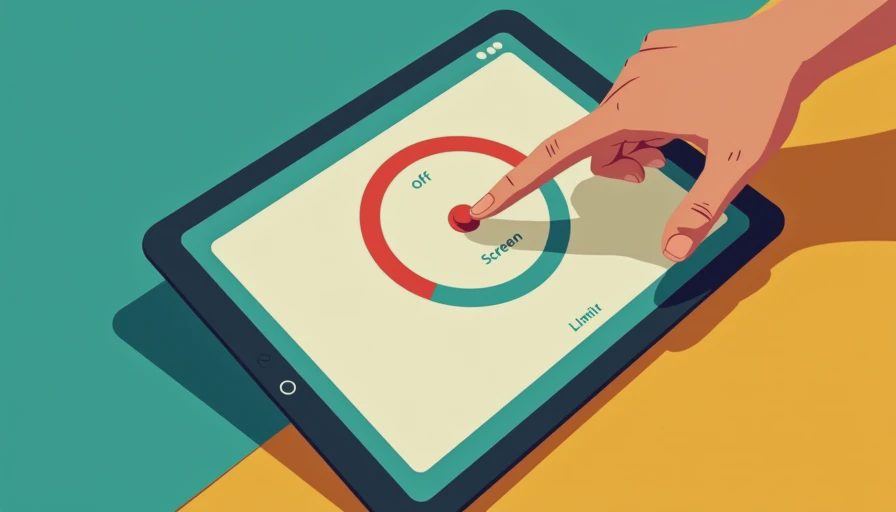
A recurring schedule is the most common explanation. A parent may remove today's limit, but a bedtime or school-night schedule remains active and applies again the next day. Check daily limits, downtime or bedtime, app-specific controls, and any device-wide pause setting.
Also look at controls inside individual apps. Netflix, YouTube, Nintendo Switch, and Roblox can have their own profiles, age settings, or playtime tools. Removing Apple or Google limits does not override a restriction created inside one of these services. If only one app is blocked, troubleshoot that app instead of resetting the entire family setup.
Sync problems can happen when a child's phone is offline, nearly out of storage, or signed into the wrong account. Charge the device, connect it to Wi-Fi, restart it, and check for system updates. Avoid repeatedly changing the setting while troubleshooting; several conflicting changes can make it harder to tell which control is active.
How to turn off screen time for my child safely
Removing limits does not mean removing every family boundary. Before you make the change, write down the settings you may want later: bedtime, blocked websites, communication limits, purchase approval, and content restrictions. I keep this information in a small household notebook along with device names and account recovery details. That simple record saves time after a phone reset or account change.
For younger children, consider leaving content and purchase controls enabled while allowing additional entertainment time. On an iPhone, Content & Privacy Restrictions can remain active even when App Limits are removed. On Android, Family Link can continue managing app approvals and content settings after you change the daily schedule.
Explain the change plainly. A child is less likely to keep testing boundaries when the rule is clear: “The limit is off for tonight because you are finishing a school project, and bedtime still starts at nine.” Technology works better when the device setting and the household agreement say the same thing.
A simple check after changing the setting
After you turn off a limit, test the device from the child's normal profile. Open a previously restricted app, check whether the lock screen still appears, and confirm that the correct time zone is selected. If the device is shared, test the child account rather than your administrator account, because parents often have unrestricted access by design.
If you still need help with how to turn off screen time for my child, take a screenshot of the active restriction and note whether it comes from Apple, Google, or the individual app. That detail makes support conversations much faster. You can then restore the setting later without guessing.
The practical goal is not to make every device unlimited. It is to make the household technology predictable. Use a temporary extension when that is enough, remove one unnecessary limit when possible, and keep the boundaries that protect sleep, purchases, and age-appropriate content. Let’s make your home work for you, not the other way around.