The Pattern Is Predictable
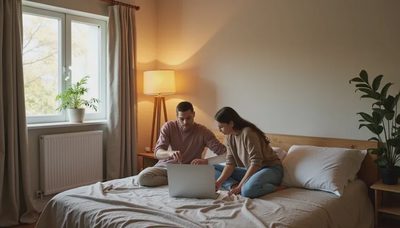
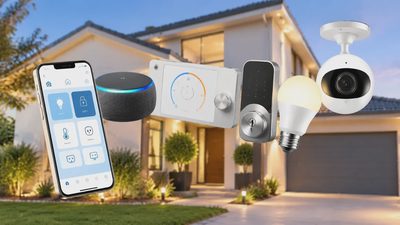
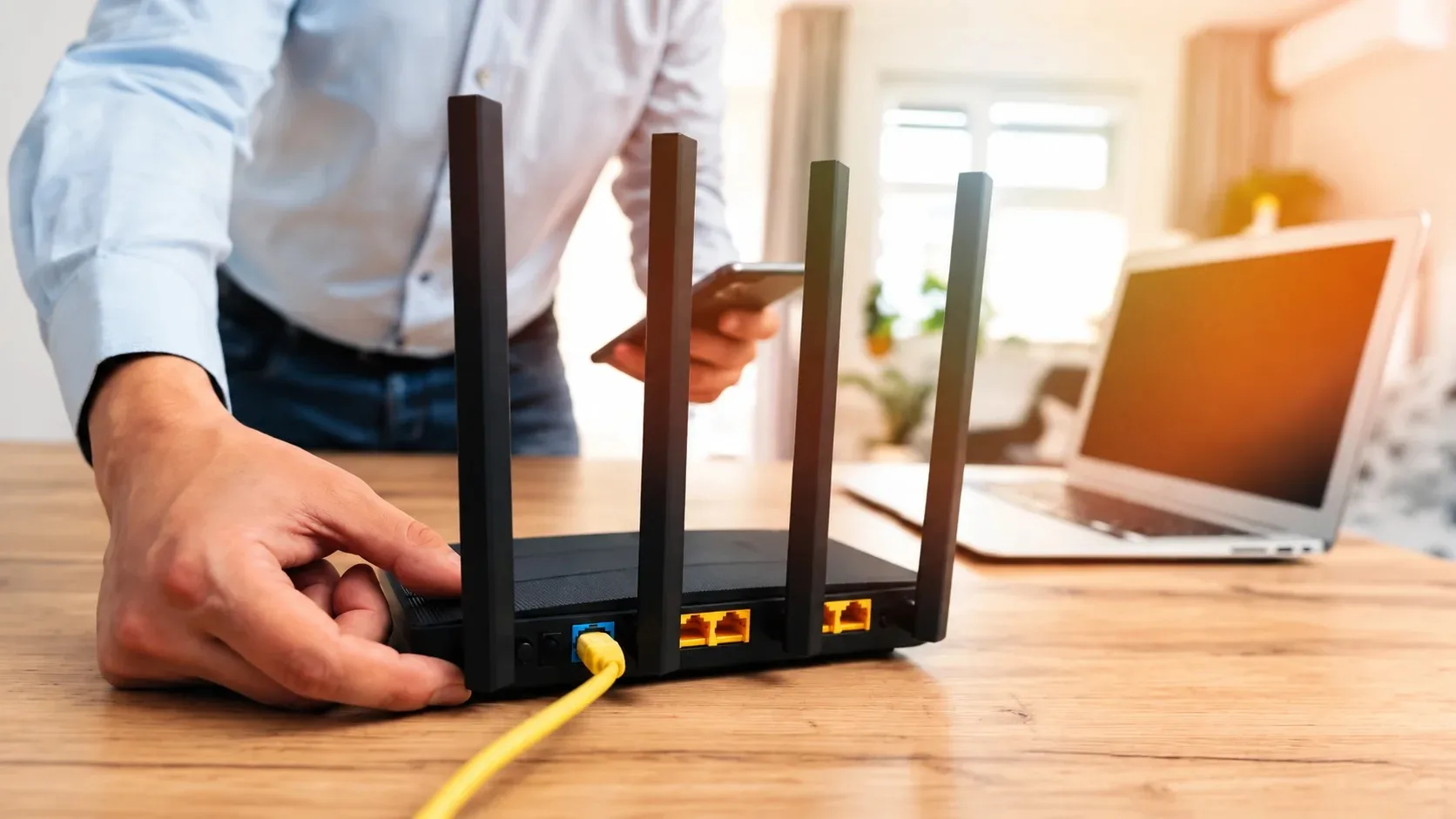
A family upgrades their router for better coverage or speed. The new unit is installed, the phones and laptops connect easily, and then the smart lights, plugs, thermostat, and cameras stop responding. The devices are still powered. They simply cannot find the network they were configured to use or they have been assigned new addresses that the controlling apps no longer recognize. This pattern repeats in house after house because most smart devices were designed under the assumption that the network would remain relatively stable.
Why Smart Devices Are More Fragile Than Phones
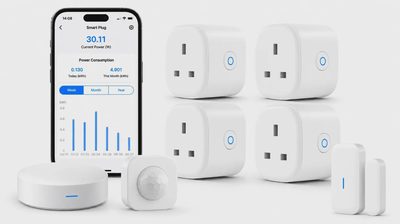
Phones and laptops rejoin networks quickly and tolerate changes in IP addresses without complaint. Smart plugs, bulbs, cameras, and hubs often store credentials permanently and expect the same local address they were given during initial setup. When those expectations break, the devices appear dead even though the hardware itself is fine. Understanding this difference prevents the common mistake of assuming the devices have failed and need replacement.
The Emotional Cost of a Broken Smart Home
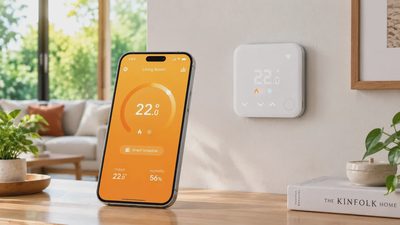
When multiple devices go offline at once, the household suddenly loses routines it had come to rely on. Lights no longer respond, the thermostat cannot be adjusted remotely, and cameras stop sending alerts. The frustration is real, especially if the router upgrade was supposed to improve daily life. Recognizing that the problem is almost always configuration rather than hardware failure helps keep the recovery calm and systematic instead of panicked.
How Long Recovery Usually Takes
With a clear sequence, most homes can restore the majority of devices within one to two hours. Stubborn hubs or older sensors may take longer, but the process remains manageable when each failure point is addressed in order. Skipping steps or randomly resetting everything tends to stretch the work into a full weekend.
Network Name and Password Changes
Most smart devices store the Wi-Fi network name (SSID) and password they were originally set up with. If the new router uses a different name or password, those devices cannot join. Even when the name and password stay the same, some devices still struggle because the transition itself interrupts their stored connection data.
Keeping Credentials Identical
The simplest prevention is to configure the new router with the exact same network name and password before migrating any smart devices. This single step eliminates the most common reason devices fail to reappear. If a new name is strongly preferred, accept that every smart device will need manual reconnection and budget time accordingly.
Devices That Refuse the Old Credentials
Some devices cache additional network information beyond the name and password. When they refuse to join even with correct credentials, the usual fix is to put them back into pairing or setup mode through their manufacturer app. This forces a fresh handshake with the new router and clears outdated connection data.
Documenting Credentials Before the Swap
Before shutting down the old router, write down the exact SSID, password, and any special characters. It is surprisingly easy to mistype a password that has been used for years. Having the information on paper prevents the recovery from stalling while someone tries to remember whether the password used a capital letter or a symbol.
Band and Frequency Issues
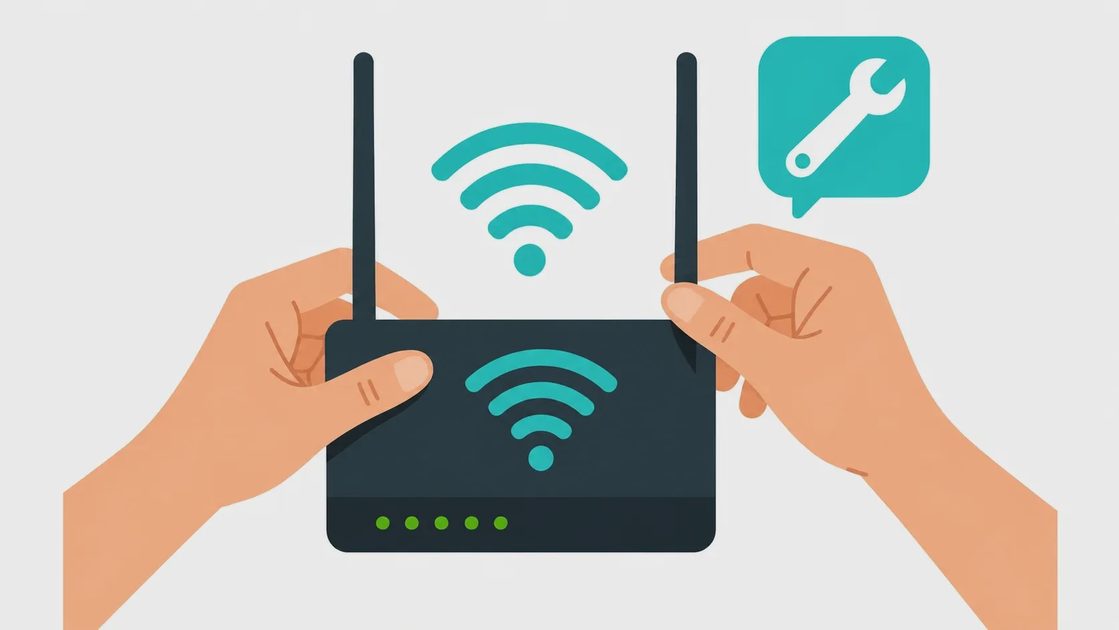
New routers often enable band steering or use different default band settings. A device that previously connected reliably to 2.4 GHz may be pushed toward 5 GHz or may lose visibility of the 2.4 GHz network entirely. Older smart plugs, sensors, and some cameras only support 2.4 GHz and simply disappear when that band is hidden or de-emphasized.
Making the 2.4 GHz Network Visible Again
During the initial setup of the new router, temporarily disable band steering and give the 2.4 GHz and 5 GHz bands clearly different names. Connect every older or stubborn smart device to the 2.4 GHz network first. Once those devices are stable, decide whether to re-enable combined bands or leave them separate for easier future management.
Why Band Steering Creates Trouble
Band steering tries to place each device on the “best” band automatically. In practice it often sends 2.4 GHz-only devices into a loop of failed connection attempts or parks them on a weak 5 GHz signal. Separating the bands removes the guesswork and gives you direct control over where each device lives.
Testing Device Compatibility After the Change
After the bands are separated, walk through the house with the manufacturer apps open and confirm each device shows as online. Devices that still fail at this stage usually need a full re-pairing rather than another reboot. Addressing band visibility early prevents hours of chasing symptoms that are actually radio-related.
IP Addresses and DHCP Reservations
Many smart-home apps and hubs expect devices to keep the same local IP address they received during original setup. A new router typically starts fresh DHCP leases, handing out different addresses from a new pool. Cameras become unreachable, hubs lose track of their child devices, and automations that rely on fixed addresses stop working.
Creating Reservations for Critical Devices
Once a device is back online, note its current IP address in the router’s device list and create a DHCP reservation so the router always assigns the same address. Prioritize hubs, cameras, and any device that other equipment depends on. Stable addresses eliminate a large percentage of post-upgrade flakiness.
How to Find the Current Address
Most router apps or web interfaces show a list of connected devices with their IP addresses and names. Manufacturer apps sometimes display the local IP as well. Write the addresses down before creating reservations so you can verify they remain correct after the next router reboot.
When Reservations Are Not Enough
A few devices ignore DHCP and use link-local or previously stored static addresses. In those cases the device itself must be reset to automatic IP addressing through its own app or setup mode. Combining router-side reservations with device-side automatic addressing produces the most stable result.
Hub and Bridge Complications
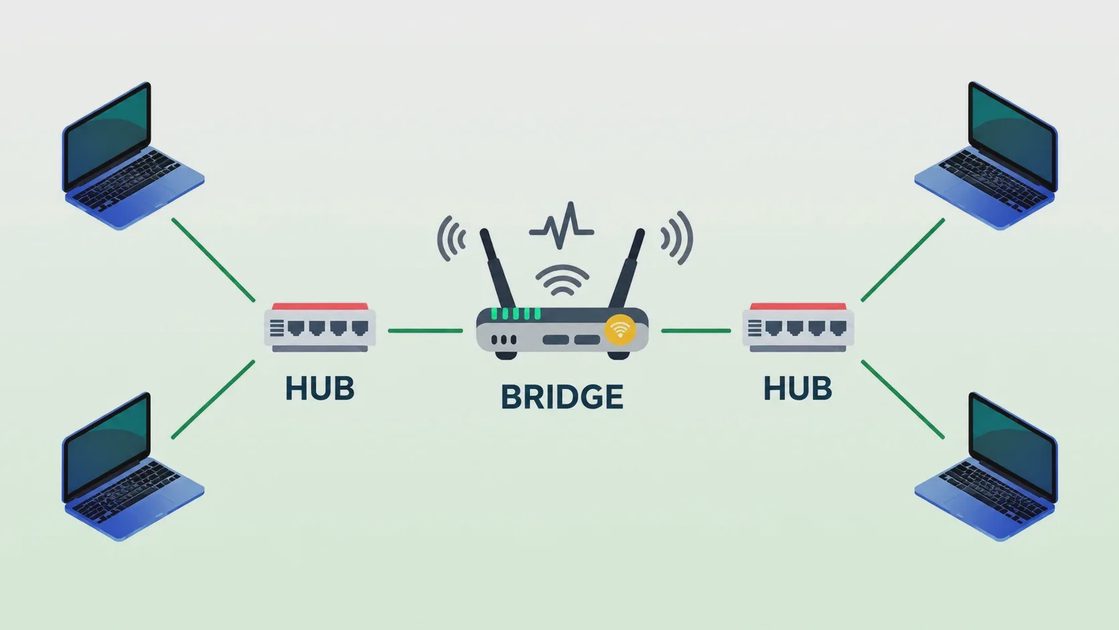
Systems that rely on a central hub or bridge add an extra layer of recovery. The hub must first join the new network successfully, then rediscover or re-pair every device it controls. Some hubs require a factory reset and a complete re-adoption process when the network changes.
Preparing Documentation in Advance
Before changing routers, locate the hub’s original packaging, recovery codes, and any account credentials. Store them in a single known place. When a hub needs a full reset, having the recovery information ready turns a potential multi-hour search into a short procedure.
Re-pairing Order Matters
After the hub is online, re-pair devices one at a time rather than expecting the hub to find everything automatically. Start with the devices that are physically closest to the hub, confirm each one appears in the app, then move outward. This staged approach surfaces problems early instead of creating a long list of missing devices at the end.
Testing Automations After Hub Recovery
Once the hub reports all devices as online, deliberately trigger every important automation or routine. Lights, scenes, and scheduled actions often need a manual refresh or re-save after a network change. Confirming them immediately prevents surprises the next morning or evening when the household expects them to work.
A Recovery Sequence That Works
Set the new router’s main SSID and password to match the old network if possible.
Ensure a visible 2.4 GHz network exists for older devices.
Power-cycle the smart devices and let them attempt to rejoin.
For any that fail, use the manufacturer’s app to put the device back into setup mode and reconnect it.
Reserve IP addresses for hubs and critical devices.
Test automations and remote access after everything is online.
Only then re-enable advanced features such as band steering if desired.
Why This Order Helps
Addressing credentials and bands first gets most devices back online quickly. IP reservations and hub recovery handle the remaining stubborn cases. Testing before re-enabling advanced features prevents new problems from being introduced on top of the old ones.
Preventing the Next Break
When you change routers again, take a few minutes first to list every smart device, the app that controls it, and whether it depends on a hub. Note any custom IP reservations. That list turns a multi-hour recovery into a shorter, more predictable process. Also consider whether a staged migration—moving a few devices at a time—is safer than cutting over the entire house at once.
Closing Thought
Smart-home devices are more sensitive to network changes than phones and laptops. The breakage after a router upgrade is almost never random. It follows from changed credentials, band settings, or address assignments. Anticipate those points, keep a simple inventory, and the recovery stays manageable. The goal is a network change that improves coverage without turning the rest of the house into a weekend project.
Let’s make your home work for you, not the other way around.