If you are wondering how to fix weak wifi signal, start with the router’s location before buying new equipment. A router hidden in a cabinet, placed behind a television, or sitting at one end of the house can create slow rooms even when your internet plan is fast. In many homes, moving the router a few feet and restarting the network solves more trouble than an expensive upgrade.
Wi-Fi is a radio signal, so walls, floors, metal appliances, mirrors, and distance all matter. The goal is not to make every room perfect; it is to give the places you actually use reliable coverage. Let’s make your home work for you, not the other way around.
Start with a simple signal check
Before changing settings, walk through the house with a phone or laptop. Test the connection beside the router, in the room where service feels poor, and near the place where you use a camera, smart lock, television, or game console. Run the same speed test in each location, preferably at a similar time of day.
If speeds are strong beside the router but poor in one bedroom, the problem is probably coverage. If speeds are slow everywhere, the issue could be your internet service, modem, router, or a busy local network. A speed test does not measure everything, but the comparison helps separate an in-home Wi-Fi problem from an internet connection problem.
Also look for the difference between 2.4 GHz and 5 GHz networks. The 2.4 GHz band travels farther and handles some walls better, while 5 GHz is often faster at short range. Newer routers may combine both bands under one network name. That is convenient, but temporarily separating them can help you identify which band works best in a troublesome room.

Improve the router’s location
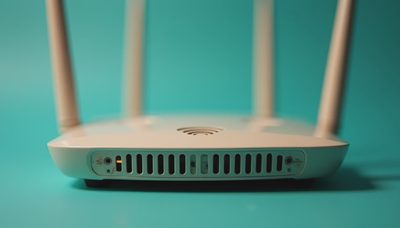
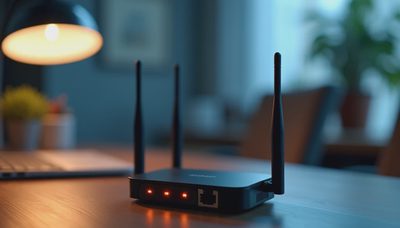
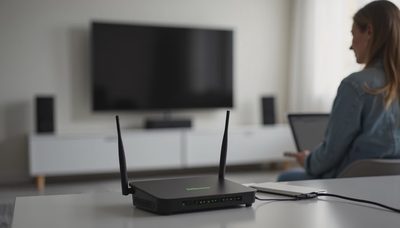
Router placement is the cheapest answer to how to fix weak wifi signal. Put the router in an open, central location, ideally on a shelf about waist to eye level. Keep its antennas upright if the design allows it. Do not place it on the floor, inside a media cabinet, beside a large metal object, or behind a stack of books.
A router in the basement may serve the basement well but struggle to reach a second-floor bedroom. A router in the far corner of a first-floor office sends much of its signal outside the house. Moving it toward the center can produce a noticeable improvement without changing your plan.
Keep it away from cordless-phone bases, baby monitors, thick concrete, electrical panels, and large kitchen appliances. You do not need an empty room around the router, but it should have breathing room. After moving it, wait several minutes, then test the same rooms again.
Restart and update the equipment
The next step in how to fix weak wifi signal is a full restart. Unplug the modem and router. Wait about 60 seconds, plug in the modem first, and wait until its connection lights settle. Then reconnect the router. This clears temporary errors and gives the network a clean start.
Log in to the router’s app or administration page and check for firmware updates. Manufacturers such as TP-Link, ASUS, Netgear, Eero, and Google periodically release updates that address stability, compatibility, or security problems. Set the router to install updates automatically when that option is available.
Look at connected devices, too. A forgotten tablet, cloud camera, game console, or computer downloading a large update can consume much of the available capacity. Disconnect devices you no longer use. If one device repeatedly causes trouble, test the network with it powered off before replacing the router.
Decide whether you need a mesh system
A mesh system makes sense when the house is larger, has multiple floors, or has a persistent dead zone that better placement cannot solve. A mesh kit uses a main unit and one or more satellite units to spread coverage through the home. Systems from Eero, Google Nest Wifi Pro, TP-Link Deco, and ASUS ZenWiFi are common examples.
The main unit should connect to the modem, while the satellite should sit between the main unit and the weak area. Placing a satellite inside the dead zone is a common mistake; it cannot repeat a strong signal if it barely receives one. Start with one additional unit, test it, and add another only when the layout requires it.
Wired backhaul is even better when possible. Connecting a satellite to the main router with Ethernet avoids using wireless capacity between the two units. Running cable may cost roughly $50 to $200 if a professional does it neatly, but it can be more dependable than adding several wireless nodes.

Fix interference and overloaded channels
Nearby networks can interfere with one another, especially in apartments, townhomes, and dense neighborhoods. Most modern routers select channels automatically, and that is usually the right first setting. If the connection drops at regular times, use the router app’s network scan or a reputable Wi-Fi analyzer to see whether many nearby networks share the same channel.
For 2.4 GHz, channels 1, 6, and 11 are commonly used because they do not overlap in the same way. Avoid changing advanced settings repeatedly without testing each change. Write down the original setting in a small notebook so you can undo it later.
Older devices can also create problems. A decade-old router may lack current Wi-Fi standards and security updates. A new router will not make an old device’s antenna stronger, but it can manage several modern devices more efficiently. Replace equipment when it is unstable, unsupported, or unable to handle your household’s needs—not simply because a newer model exists.
Check speed, placement, and wired options
When learning how to fix weak wifi signal, separate signal strength from internet speed. A strong Wi-Fi signal can still feel slow if your internet plan is congested or a device is uploading video. Conversely, a fast connection beside the router does not help a smart camera at the edge of coverage.
For stationary devices such as a desktop computer, streaming box, or gaming console, Ethernet is often the simplest reliable improvement. A basic cable can eliminate wireless interference and reduce the number of devices competing for radio time. Powerline adapters can help in some homes, although their results depend on the electrical wiring. MoCA adapters are another strong option when the home already has usable coaxial cable.
If you use outdoor cameras or a video doorbell, test the signal at the actual mounting point before drilling holes. A device that works on a workbench may fail through an exterior wall. Sometimes moving an indoor mesh unit several feet toward the door is enough; sometimes a wired access point is the better long-term solution.
A practical order of operations
The most sensible order for how to fix weak wifi signal is to test first, move the router second, restart and update third, and only then consider equipment. Spend five minutes recording results in the weak room before making changes. That small habit prevents buying a $300 mesh kit when a $10 shelf or a better cable route would have solved the problem.
If coverage remains poor, compare the cost of one mesh unit, a wired access point, and a professional cable run. A small apartment may need only a better-positioned router. A two-story home with brick walls may benefit from mesh or Ethernet. A household with cameras, work calls, streaming, and smart-home devices should value stability, not just the highest advertised speed.
Finally, label the modem and router cables, save the network name and recovery method somewhere secure, and note what fixed the issue. That makes the next troubleshooting session much easier. Good home networking is rarely about chasing every setting. It is about making one dependable improvement at a time.