A dependable home network should disappear into the background. Your family should be able to stream a movie, join a video call, print homework, and check a camera without wondering which device needs restarting. If your home network feels unpredictable, the answer is usually a practical fix rather than the most expensive router on the shelf.
After years of installing residential networking equipment, I have found that most problems come from placement, outdated settings, or too many devices competing for a weak signal. This guide walks through the improvements that make the biggest difference, starting with the simplest option.
Start with the modem and router
Your internet provider usually supplies a modem, gateway, or combination modem-router. The modem connects your home to the provider. The router shares that connection with phones, computers, televisions, cameras, and smart-home products. Some gateways perform both jobs in one box.
Before buying anything, identify what you have. Look at the labels and write down the model number, Wi-Fi name, and the date it was installed. If the equipment is five or six years old, it may lack current security updates, efficient Wi-Fi features, or enough capacity for a busy household. Ask the provider whether a newer gateway is available, or consider using your own compatible router.
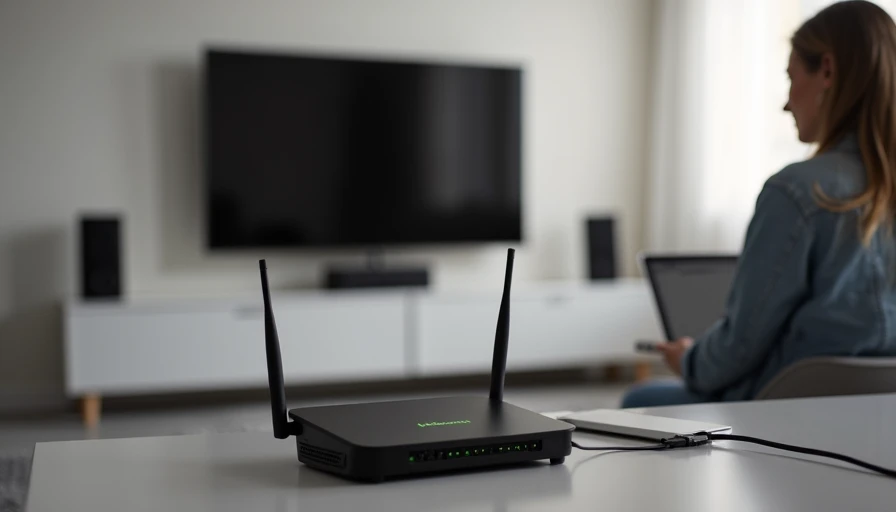
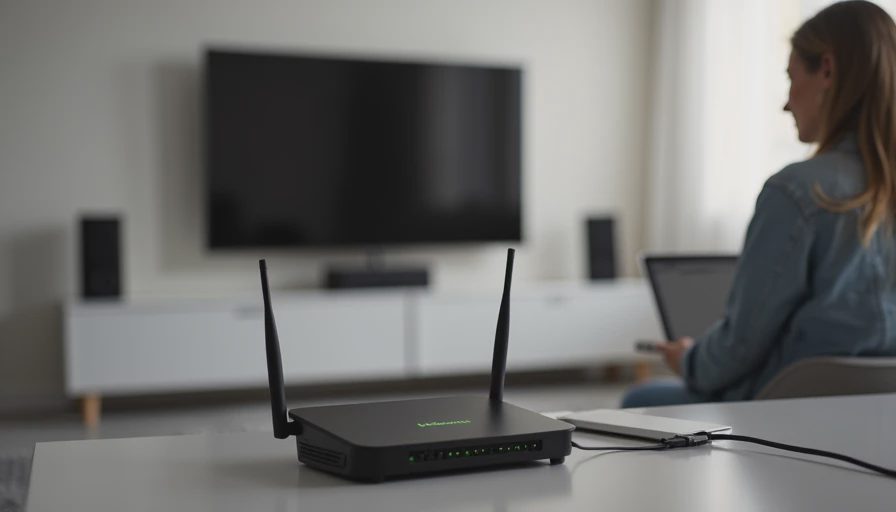
Place the router in an open, central location, ideally on a shelf about waist or chest height. Do not hide it inside a cabinet, behind a television, or beside a microwave. Metal, concrete, mirrors, and large appliances can weaken wireless signals. Moving a router from a basement corner to a central first-floor shelf can improve coverage without spending a dollar.
Measure the problem before buying equipment
Walk through the house with your phone and test several rooms. Check the connection near the router, in the bedroom, at the kitchen table, near the garage, and wherever a video doorbell or camera is installed. A speed-test app can show download speed, upload speed, and latency, but the pattern matters more than one impressive result.
If speeds are good near the router and poor in one distant room, you have a coverage problem. If speeds are poor everywhere, the issue may involve the provider, modem, cabling, or a service outage. If only one laptop or television struggles, update that device and test it with an Ethernet cable before replacing the whole system.
A reliable home network also depends on knowing which devices use the most bandwidth. Several 4K streams, cloud backups, gaming downloads, and security cameras can compete at the same time. Make a simple list of heavy-use devices. That list will tell you whether you need better coverage, more capacity, or a faster internet plan.
Choose between a router, access point, and mesh system
A stronger single router is often enough for a small apartment or a compact one-story house. A typical upgrade might cost $80 to $180, and installation generally involves connecting the new router, copying the Wi-Fi name and password, and updating firmware. Keeping the same Wi-Fi name lets many household devices reconnect automatically.
For a long house, multiple floors, or thick interior walls, a mesh system can provide more consistent coverage. Systems from eero, Google Nest WiFi, TP-Link Deco, and ASUS ZenWiFi are designed to use several coordinated units. A two- or three-pack commonly costs $150 to $400. Put the second unit where it still receives a strong signal from the first, not in the dead zone itself.
A wired access point is often the best technical solution when Ethernet cable is already available. It uses a network cable for a stable connection and broadcasts Wi-Fi in another area. This can outperform wireless mesh in a finished basement, detached office, or home with heavy streaming. The tradeoff is installation effort and the need to run cable neatly.
Do not buy a mesh kit simply because the package promises coverage for a very large home. More units can create interference and extra management. Start with the smallest setup that covers your actual living space.
Secure the home network without making life difficult
Change the administrator password on the router, especially if the installer left a default printed on the label. Use a unique password that is not shared with email, banking, or social media. Turn on automatic firmware updates when the manufacturer supports them, and enable the router firewall.
Use WPA2 or WPA3 wireless security. WPA3 is newer, but some older smart plugs, printers, and cameras may only support WPA2. If a device will not connect, create a separate guest or smart-device network rather than weakening security for the entire household.
A guest network is useful for visitors because it keeps their phones and laptops separate from shared storage, printers, and cameras. Some routers also offer a dedicated Internet of Things network. These features are helpful, but they are not magic protection. Keep device software updated, remove products you no longer use, and review the connected-device list every few months.
Privacy settings deserve attention too. Turn off remote router management unless you genuinely need it, and review cloud subscriptions for cameras and doorbells. A practical home network reduces unnecessary exposure without requiring advanced cybersecurity skills.

Fix dead zones and dropouts step by step
When one room has weak Wi-Fi, begin with placement. Move the router a few feet, raise it off the floor, and retest. Next, disconnect an unnecessary extender or move it closer to the main router. Extenders can help in a narrow problem area, but inexpensive models often cut performance because they repeat a weak signal.
For a mesh system, check the app's connection status for each node. If a satellite shows a weak link, move it toward the center of the house. Keep nodes away from cordless-phone bases, large metal objects, and enclosed entertainment cabinets. After every move, wait a few minutes and test the problem device again.
If the connection drops on every device, restart the modem and router by unplugging both for about a minute. Connect the modem first, wait for its normal lights, and then power the router. If outages continue, contact the internet provider and ask them to check the line and signal levels. Avoid factory-resetting equipment before recording your Wi-Fi name and password.
For a television, desktop computer, game console, or stationary camera, Ethernet is worth considering. A $10 to $30 cable can deliver a steadier connection than wireless and reduce congestion for everyone else.
Build a setup your family can maintain
Write down the router model, provider contact information, Wi-Fi name, installation date, and recovery method in a notebook stored at home. I label Ethernet cables at both ends, because “the blue cable” stops being useful once several devices are connected. Keep a record of warranty dates and which outlet powers each piece of equipment.
Review the device list each month. Rename unfamiliar entries only after identifying them; a phone, streaming stick, printer, or smart bulb may appear under a manufacturer name. Remove old phones and products that have been discarded. Schedule firmware checks every few months rather than waiting for a failure.
If children use the connection, look for built-in parental controls that set bedtime schedules or pause specific devices. These controls are easier to maintain when they live in one router app, but do not assume they replace family rules. Explain which devices need the Internet and why some products should not be left with default passwords.
A good home network does not need constant attention. It needs sensible placement, current equipment, clear notes, and a troubleshooting routine that starts with the least expensive fix. Let’s make your home work for you, not the other way around.