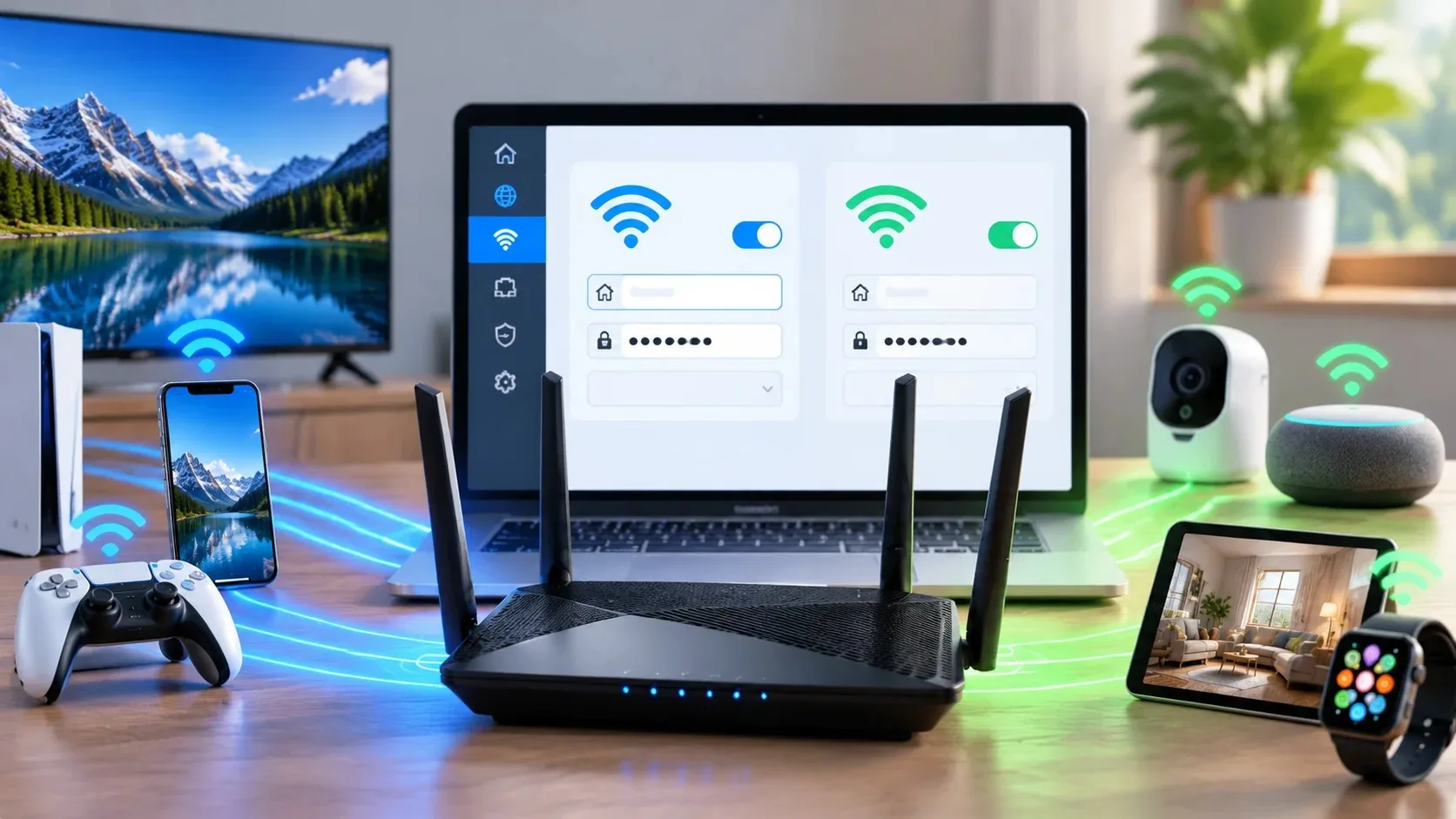
Why the Default Settings Are Rarely Ideal
Routers arrive with factory defaults that prioritize easy setup over optimal performance in a crowded neighborhood. The channel may be set to auto and then settle on a busy one. The two bands may be combined in a way that sends devices to the weaker option. Guest networks may be left open or disabled entirely. Firmware may be months out of date. None of these issues require advanced knowledge to correct, yet they account for a large share of the “my Wi-Fi is flaky” calls I used to receive.
The Cost of Leaving Defaults Alone
Leaving everything at factory settings is understandable. The router works well enough at first, and opening the settings page feels intimidating. Over time, though, neighboring networks change, more devices join the household, and the original defaults become less suitable. A short session with the settings often restores the performance people expected when they first plugged the router in.
Finding the Settings Page
Most routers are reached by typing an address such as 192.168.1.1 or 192.168.0.1 into a browser while connected to the network. The exact address and the login credentials are usually printed on a sticker on the router itself. If the sticker is missing, the internet provider’s app or support page often has the information. Once you are in, look for sections labeled Wireless, Wi-Fi, or Advanced. The names vary by brand, but the ideas are consistent.
If You Cannot Log In
Try the common default usernames and passwords listed in the manual or on the manufacturer’s site. If those fail, a factory reset may be necessary—but only after you have recorded any custom settings you want to restore. Most families never need a reset if they can locate the sticker or the provider’s documentation.
Channel Selection
On the 2.4 GHz band the useful channels are limited. If your neighbors are using the same ones, your devices wait longer for airtime. Switching to a less crowded channel is one of the highest-value changes you can make.
How to Choose a Better Channel
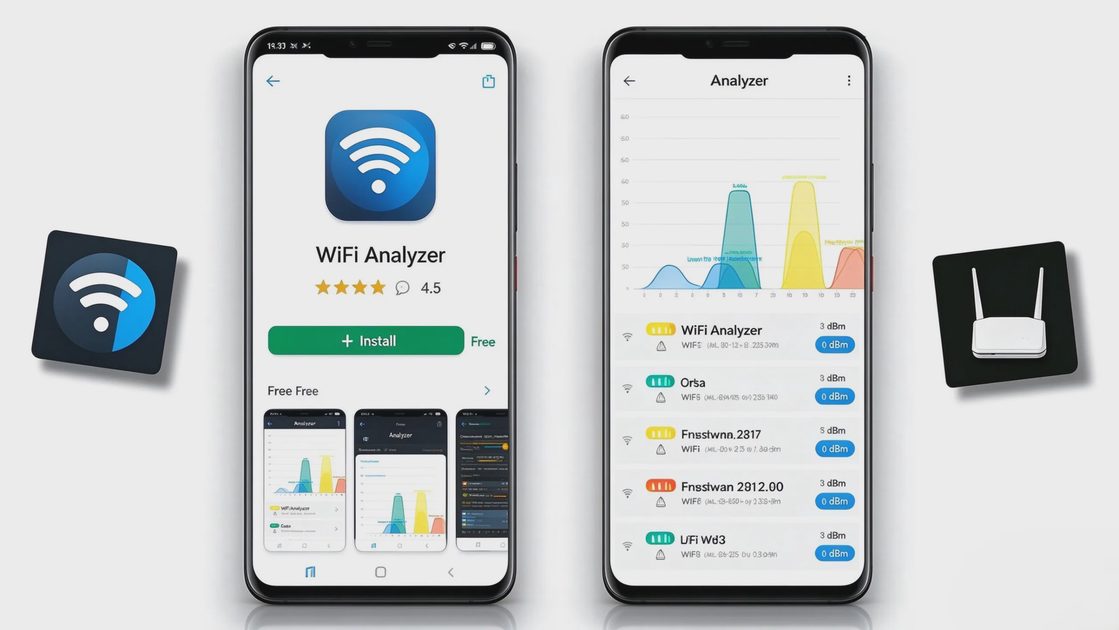
Many routers have an automatic channel scanner. Use it, or walk around with a free Wi-Fi analyzer app on your phone and note which channels are busiest. Then set your router to a quieter option and leave it there for a few days to evaluate. The 5 GHz band has more channels and is usually less congested. Still, checking is worthwhile, especially in apartment buildings or dense neighborhoods.
When Auto Channel Fails
Automatic channel selection sometimes settles on a busy channel and stays there. Manually choosing a quieter one and locking it in often produces more stable results. Revisit the choice if you notice new slowdowns after neighbors change equipment.
Band Steering and Separate Networks
Some routers combine the 2.4 GHz and 5 GHz bands under one network name and try to steer devices automatically. The feature works well in some homes and poorly in others.
When to Separate the Bands
If you notice devices clinging to the slower band or dropping connections while moving through the house, try separating the bands into two network names. Give the 5 GHz network a clear label such as “Home-5G” and connect stationary high-bandwidth devices to it. Let phones and tablets choose based on location. The extra step of selecting the right network once is usually worth the improved reliability.
Firmware Updates
Router manufacturers release firmware updates that fix bugs, improve stability, and occasionally close security gaps. Many routers check automatically, but not all do.
How to Update Safely
Look for a Firmware or Update section and apply any pending updates. Schedule the update for a time when the household can tolerate a short interruption. After the update, the router will restart and the network will return within a few minutes. Keeping firmware current prevents a surprising number of intermittent problems.
Guest Network
A guest network keeps visitors’ devices off your main network. That separation is useful for both security and performance.
Setting It Up Simply
Enable the guest network, give it a simple password, and leave the main network for household devices. Most routers let you set a schedule or limit the bandwidth available to guests so a visiting teenager’s downloads do not slow down a work call. The guest network is one of the easiest high-value settings to enable.
Quality of Service and Device Priority
Some routers offer Quality of Service settings that let you favor certain devices or types of traffic. For ordinary families the most practical use is giving priority to a work laptop or a video-call device during the day.
Keep It Simple
Do not over-complicate QoS. A simple priority list is enough. If the options look confusing, leave them at default rather than guessing. The goal is to protect the connections that matter most, not to create a complex hierarchy that needs
What You Can Safely Ignore
You do not need to change encryption methods if the router is already using WPA2 or WPA3. You do not need to adjust transmit power in most houses. You do not need to create complicated firewall rules. The settings that matter for everyday reliability are the ones that affect how devices find a clear channel and stay connected as people move around the house.
Focus on the High-Impact Items
Channel, band behavior, firmware, and guest access deliver most of the practical benefit. Everything else can wait until a specific problem appears that points toward a more advanced setting.
A Practical Check Sequence
Log in and note the current channel on both bands.
Run a quick scan or check with a phone app.
Change to quieter channels if needed.
Decide whether to keep the bands combined or separate them.
Apply any firmware updates.
Confirm the guest network is on and password-protected.
Reboot the router and test the rooms that previously had trouble.
Why This Sequence Works
This sequence takes less than an hour and resolves a large percentage of common complaints. It addresses the settings that most often drift away from optimal values and restores the reliable coverage a family expects. You do not have to touch every menu. You only have to fix the parts that are working against you.
Router settings are not mysterious once you know which ones affect daily life. A few deliberate choices about channels, bands, and updates often restore the performance people assumed they would get when they first plugged the router in. Keep the changes modest, test the results, and the network becomes quieter and more predictable.
Let’s make your home work for you, not the other way around.